Introduction
A fast internet plan alone does not guarantee smooth browsing, streaming, or gaming. In many cases, poor performance is caused by incorrect router configuration. Using the best WiFi router settings can dramatically improve speed, signal strength, security, and overall network stability without upgrading your internet package.
Routers come with default settings that are designed to work for everyone, but not optimized for your specific environment. Factors such as home size, number of connected devices, interference, and usage patterns all affect WiFi performance. Proper configuration ensures your router delivers maximum efficiency.
This guide is based on real networking experience and industry best practices. It explains the best WiFi router settings step by step, helping home users, remote workers, and small offices achieve reliable, high-performance wireless networks.
Understanding WiFi Router Settings
What Are WiFi Router Settings?
WiFi router settings are configuration options that control how your router transmits data, manages connected devices, and protects your network. These settings are accessible through the router’s admin panel or mobile app.
Key areas include:
-
Wireless bands and channels
-
Security and encryption
-
Bandwidth management
-
Firmware and system updates
Choosing the best WiFi router settings allows your network to adapt to modern internet demands.
Why Default Settings Are Not Enough
Default settings prioritize compatibility over performance. They may cause:
-
Slow speeds
-
High latency
-
Network congestion
-
Security vulnerabilities
Optimizing these settings ensures a better user experience and network reliability.
Best WiFi Router Settings for Speed Performance
Choose the Right WiFi Band
Modern routers support multiple bands.
Recommended setup:
-
2.4 GHz → Better range, slower speed
-
5 GHz → Faster speed, less interference
-
6 GHz (WiFi 6E) → Best performance for modern devices
For best results, enable dual-band or tri-band mode and connect high-speed devices to 5 GHz or 6 GHz.
Select the Best WiFi Channel
WiFi channels can overlap and cause interference.
Best practices:
-
Use channels 1, 6, or 11 for 2.4 GHz
-
Use auto or least-congested channels for 5 GHz
-
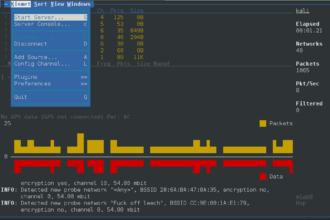
Analyze channels using WiFi analyzer tools
This is one of the most effective best WiFi router settings for improving speed.
Best WiFi Router Settings for Stability
Adjust Channel Width
Channel width affects speed and stability.
Recommended settings:
-
20 MHz for crowded networks
-
40 MHz for balanced performance
-
80 MHz for high-speed connections
Avoid setting maximum width in congested areas to prevent instability.
Enable Quality of Service (QoS)
QoS prioritizes important traffic.
Benefits of QoS:
-
Smooth video calls
-
Lag-free gaming
-
Faster streaming
Set priority for work devices, gaming consoles, or streaming apps.
Best WiFi Router Security Settings
Change Default Login Credentials
Default usernames and passwords are a major security risk.
Always:
-
Change admin username
-
Set a strong password
-
Disable remote admin access
This protects your network from unauthorized access.
Use the Latest Encryption
Security is a critical part of best WiFi router settings.
Recommended encryption:
-
WPA3 (best)
-
WPA2-AES (acceptable)
Avoid outdated protocols like WEP or WPA.
Advanced WiFi Router Settings for Better Performance
Update Router Firmware
Firmware updates fix bugs, improve stability, and patch security issues.
Benefits include:
-
Improved speed
-
Better device compatibility
-
Enhanced security
Enable automatic updates if available.
Disable Unnecessary Features
Turn off features you don’t use, such as:
-
WPS (security risk)
-
Guest networks (if unused)
-
Legacy compatibility modes
This reduces overhead and improves performance.
Best WiFi Router Settings for Coverage
Optimize Router Placement
Settings alone won’t help if placement is poor.
Placement tips:
-
Central location
-
Elevated position
-
Away from walls and metal objects
Correct placement complements optimized settings.
Enable Beamforming and MU-MIMO
Modern routers support advanced technologies.
Enable:
-
Beamforming → directs signal to devices
-
MU-MIMO → supports multiple devices simultaneously
These features significantly improve coverage and efficiency.
Real-World Example: Optimizing WiFi Router Settings
Before optimization:
-
Slow speeds during video calls
-
Gaming lag
-
Weak bedroom signal
Changes applied:
-
Switched to 5 GHz band
-
Selected least congested channel
-
Enabled QoS
-
Updated firmware
After optimization:
-
40% speed improvement
-
Stable video calls
-
Strong signal across rooms
This shows how best WiFi router settings make a real difference.
Common Mistakes to Avoid
Avoid these common errors:
-
Using outdated encryption
-
Overloading one WiFi band
-
Ignoring firmware updates
-
Setting maximum channel width unnecessarily
Correcting these mistakes improves long-term performance.
Conclusion:
Using the best WiFi router settings is essential for achieving fast, stable, and secure internet connectivity. Proper configuration improves speed, reduces interference, enhances security, and ensures consistent performance across all devices.
Whether you are a remote worker, gamer, or smart-home user, optimized router settings deliver a better online experience without extra cost. Regular reviews and updates of your router settings keep your network future-ready.
FAQs
1. What are the best WiFi router settings for speed?
Using 5 GHz band, optimal channels, and proper channel width provides the best speed.
2. Should I enable QoS on my router?
Yes, especially if multiple devices use the network simultaneously.
3. Which WiFi security setting is best?
WPA3 is the most secure option, followed by WPA2-AES.
4. How often should I update router settings?
Review settings every few months or after firmware updates.
5. Can router settings really improve WiFi performance?
Yes, correct settings can significantly improve speed, stability, and coverage.